
Connect Claude, ChatGPT and Gemini to your KingxTech projects
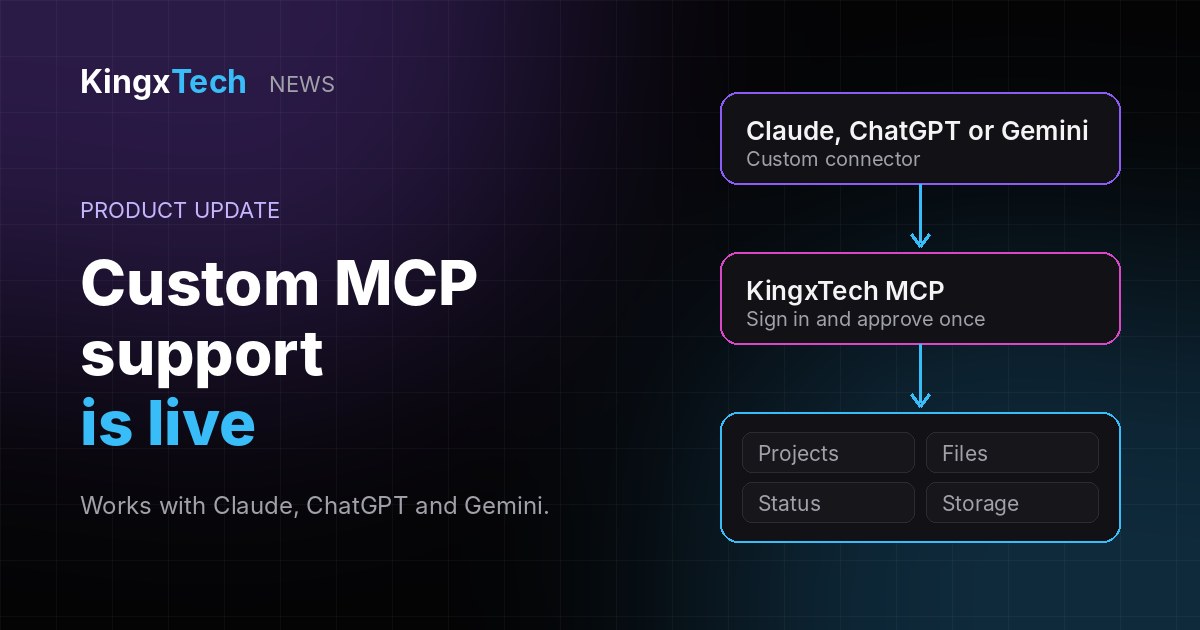
KingxTech now supports custom MCP. You can connect your KingxTech account to Claude, ChatGPT or Gemini as a custom connector, approve it once, and let the app work with the files in your projects.
What it is
MCP is a standard way for AI apps to connect to other tools. KingxTech now runs an MCP server, so an AI app that supports custom connectors can sign in to your account and work with your projects directly, without copying and pasting files back and forth.
What an approved app can do
- See your project list and each project’s publish and server status
- Read the text files in your projects (secrets files like .env are hidden)
- Create or replace text files in projects you can edit
- See your plan and how much storage you have used
What it cannot do
- Delete files or projects
- Publish sites or start servers
- See or change environment variables and secrets
- Touch billing, domains or account settings
Connect it
Add this address as a custom connector (also called an MCP server URL): https://site.kingxtech.name.ng/mcp. Sign in to KingxTech when asked and approve the app. You stay in control: open Account > Connected apps in KingxTech at any time to remove an app and end its access.
- Claude: Settings > Connectors > Add custom connector.
- ChatGPT: add it as a custom app or connector from the web or desktop app, not the mobile app. We connected it on a free ChatGPT account. Availability can depend on your plan and may change.
- Gemini: add it from Connectors. We have connected it there too.
Once connected, you can use the connector from the mobile apps as well.
Feedback
Tell us how it works for you through our contact page or on Discord. Setup steps are in the KingxTech docs.